
How to Track Website Leads Using GA4 and Google Tag Manager
A skin clinic owner opens the monthly report and sees traffic climbing from Google Search, Google Ads and Instagram. Then reception mentions that bookings feel flat. The report cannot say which channel, if any, is sending real patients. Lead tracking closes that gap, and GA4 with Google Tag Manager (GTM) can do most of the work.
Why Website Traffic Alone Cannot Tell You How Many Leads You Generate
A session is simply a visit. By default, GA4 considers a session engaged if it lasts 10 seconds or longer, includes a key event or has at least two page views. Useful, but an engaged visitor is still not an enquiry.
Viewing the contact page shows interest. Tapping a WhatsApp or phone link shows intent, though the visitor may never send a message or call. When the website confirms that a form has been accepted, that interaction can be recorded as a lead. Even then, it is not automatically a genuine potential patient. It could be spam, a supplier or someone far away. GA4 can help with the first three. Only the clinic’s own records show whether the person is a real prospect.
Which Website Interactions Should You Track as Leads?
Primary lead events are usually successful form submissions and completed bookings. WhatsApp and phone link clicks are weaker, because they show intent without proving a message was sent or a call connected. Track them, but name them as clicks. Supporting events, such as contact page views or price list downloads, help explain behaviour but are not leads.
In GA4, the events that matter most are called key events, the current name for what used to be called conversions. A key event is simply an event you have told GA4 is important. The steps depend on your permissions, and Google’s guide to marking events as key events has the current details. Standard properties can have up to 30 key events, and reports can take up to 24 hours to show a change.
How GA4 and Google Tag Manager Work Together
GA4 collects and reports the data. GTM is a container where you manage tags and triggers on your site. A trigger decides when something happens, such as a link click. A tag decides what gets sent, such as a GA4 event.
You do not always need GTM. Google’s enhanced measurement documentation says GA4 can collect form interactions, outbound clicks and file downloads once enabled, with no code changes. Phone links, many WhatsApp buttons and confirmed form successes usually need more specific rules, which is where GTM earns its place.
Setting Up GA4 Lead Tracking Through Google Tag Manager
Websites differ, so treat this as a workflow, not a recipe.
- Check what is already installed so you do not run two GA4 setups, and confirm the Google tag loads on every page.
- Describe the interaction in plain words, such as “the visitor sees confirmation after the form is accepted”, then build a trigger that matches it: a link click, a thank-you page view or a custom event your site pushes.
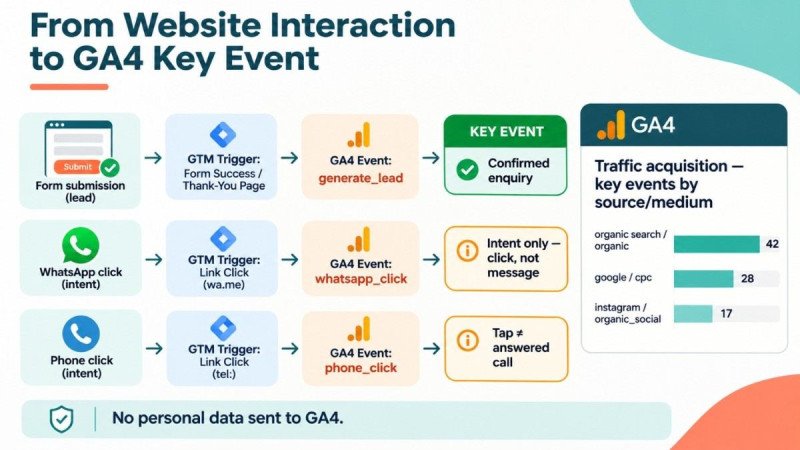
- Create a GA4 event tag and attach that trigger to it. The trigger controls when the tag runs, so a form tag might fire only after the website confirms the submission was accepted. Then pick an event name. For confirmed enquiries, generate_lead is Google’s recommended name. Names like whatsapp_click are your own choice, so keep them consistent.
- Add parameters only where they answer a real question, such as the treatment page viewed. GA4 won’t offer a custom parameter in its reports until you register it as a custom dimension, which makes it available for analysis. Never send patient names, phone numbers, email addresses, medical details or any other personally identifiable information to GA4 through event parameters.
- Preview, test, then publish.
How to Track Form Submissions, WhatsApp Clicks and Phone Calls
Forms. Three things get mixed up here. When Enhanced Measurement is enabled, GA4 can automatically collect the form_submit event when a visitor submits a supported form. However, it records the submission interaction, not necessarily a successfully accepted enquiry. Validation errors, spam filters or server problems can still stop the enquiry from arriving. generate_lead is Google’s recommended name for lead events, but it is only a label. GA4 records it whenever your tag sends it. A lead should be recorded only on a confirmed successful submission, meaning the website itself has accepted the form.
To detect acceptance, you can use a thank-you page, a success event the plugin pushes to the data layer, or GTM’s Form Submission trigger with Check Validation enabled. Google says the Check Validation option prevents the trigger from firing when the form fails validation. However, this does not necessarily confirm that the website’s server has accepted the enquiry. For that, a dedicated success event or data layer implementation is usually more reliable. AJAX forms, which send data without reloading the page, and forms inside iframes often need a custom success event or data layer implementation anyway. Whichever method you use, test it with a deliberately broken submission.
WhatsApp. A common approach is a GTM link-click trigger limited to URLs containing the address your button uses, such as wa.me or api.whatsapp.com. These links lead off your domain, so GA4 may also record an automatic outbound click for the same tap. If your custom WhatsApp event and that outbound click both count as key events, one tap shows up as two leads. Pick one to report on and leave the other as background data. Either way, a click does not prove a message was sent, since GA4 cannot see inside WhatsApp.
Phone. Trigger on links whose URL starts with tel:. A tap is not an answered call, since someone may cancel or reach voicemail. If calls matter, compare taps with the call log or use a call-tracking service.
How to Test Whether Your Lead Tracking Is Actually Working
In GTM, click Preview and enter your site address. Tag Assistant then shows which tags fired and what triggered them before anything is published, as Google’s preview and debug guide explains. Submit a test form, tap the links, and confirm each tag fires once and only after the right action.
The preview session also switches on debug mode for the events your test visit generates. Open DebugView in your GA4 property and check whether the test events arrive with the expected names and parameters. Google’s DebugView page has the details. After publishing, check the Events and key events reports, allowing for the reporting delay. Also confirm that an empty or failed form does not fire the lead event, and that your own test traffic is excluded or easy to spot.
How to Identify Which Marketing Channels Generate Enquiries
Once key events are flowing, open Reports, then Acquisition, then Traffic acquisition, and review key events by session source and medium. For the clinic, this may show whether enquiries lean towards organic search, paid clicks or Instagram.
Tag the links you control so campaigns stay separate. The clinic’s Instagram bio link might end with ?utm_source=instagram&utm_medium=organic_social&utm_campaign=clinic_awareness. Keep the spelling consistent, because Instagram and ig become separate rows. Never put UTM tags on links between your own pages, as they can overwrite the original source.
Treat the results as useful but incomplete. GA4 can tie a key event to a traffic source or session, but it cannot show every interaction that shaped someone’s decision to contact the clinic. A patient might see an Instagram post, search the clinic’s name a week later and call from a saved number, leaving GA4 to credit organic search or direct traffic. Direct traffic can hide the true origin, consent choices reduce what GA4 can observe, and calls or WhatsApp conversations off the site are invisible unless you connect them yourself. That is why what SEO professionals measure beyond rankings matters when judging search work.
Common Tracking Errors That Can Distort Your Lead Reports
Duplicate events usually come from two copies of the Google tag, or a custom event sharing a name with an automatic one.
False leads appear when a trigger fires on a submit button click, or on a thank-you page that visitors can reload or bookmark.
Missing data has several causes. Tags waiting for consent will not fire until permission is given, and ad blockers can stop tags loading.
Cross-domain gaps occur when a booking tool sits on another domain. Without cross-domain measurement, GA4 may treat activity on the booking domain as a separate user and session. This can break the customer journey and make traffic attribution less reliable.
GA4 and your inbox will rarely match exactly, but a large gap needs investigating. If the numbers agree and enquiries are still low, look at the website experience, traffic quality and how quickly enquiries are followed up, as covered in diagnosing a website that gets traffic but no enquiries.
Understanding how to measure campaign performance is an important part of digital marketing. Knowing how to attract visitors is only one part of the process. Marketers also need to understand what visitors do next and how to measure the results. These practical skills are covered in our Digital Marketing Course.